Posts tagged REST
Recreating the MobileMe Gallery in Silverlight – Part 1 *Updated*
Jul 1st
Originally, in Part 1 of my soon-to-be multi-part series on recreating the MobileMe Gallery in Silverlight I used a separate WCF project (under .NET 3.5) to create my Gallery Service to serve as a proxy between my Silverlight client and the Apple MobileMe service that provides MobileMe Gallery data in JSON format.
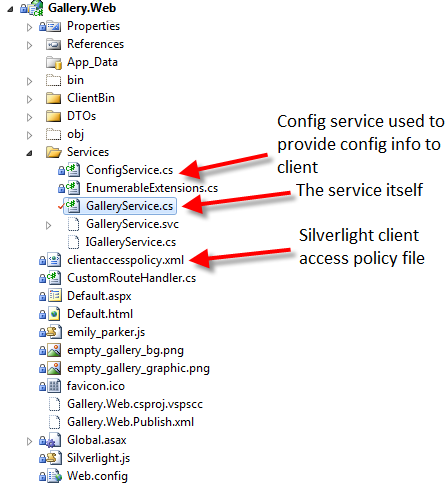
Since then, I have upgraded the project to Silverlight 4 and .NET 4 and have decided to move the service code into the Web project that hosts the Silverlight application. More importantly, I have changed the service to use the new config-free RESTful model available in WCF 4.
You can download the latest source from CodePlex here: http://silverlightmobileme.codeplex.com/SourceControl/list/changesets
Now, our web project looks like this:
Now, our service code is as simple as one file – GalleryService.cs which is as follows:
(Notice no .svc file needed anymore thanks to the WebServiceHostFactory in WCF 4)
using System;
using System.Configuration;
using System.IO;
using System.Net;
using System.ServiceModel;
using System.ServiceModel.Activation;
using System.ServiceModel.Web;
namespace Gallery.Web.Services
{
[ServiceContract(Namespace = "urn:silverlightmobileme.codeplex.com")]
[AspNetCompatibilityRequirements(RequirementsMode = AspNetCompatibilityRequirementsMode.Allowed)]
[ServiceBehavior(InstanceContextMode = InstanceContextMode.PerCall)]
public class GalleryService
{
string galleryUrlFormat = ConfigurationManager.AppSettings["GalleryUrlFormat"];
string albumUrlFormat = ConfigurationManager.AppSettings["AlbumUrlFormat"];
[WebGet(UriTemplate = "/{username}",
ResponseFormat = WebMessageFormat.Json,
BodyStyle = WebMessageBodyStyle.Bare)]
[OperationContract]
public Stream GetGallery(string username)
{
// TODO: add exception-handling using WebFaultExceptions and HttpStatusCode enumeration
var webClient = new WebClient();
string photocastUrl = string.Format(galleryUrlFormat, username);
return webClient.OpenRead(photocastUrl);
}
[WebGet(UriTemplate = "/{username}/{id}",
ResponseFormat = WebMessageFormat.Json,
BodyStyle = WebMessageBodyStyle.Bare)]
[OperationContract]
public Stream GetAlbum(string username, string id)
{
var webClient = new WebClient();
string albumUrl = string.Format(albumUrlFormat, username, id);
return webClient.OpenRead(albumUrl);
}
}
}
The magic of WCF 4 config-free RESTful services is handled in Global.asax.cs
using System.Web;
using System.ServiceModel.Activation;
using System.Web.Routing;
using Gallery.Web.Services;
namespace Gallery.Web
{
public class Global : HttpApplication
{
public static void RegisterRoutes(RouteCollection routes)
{
//routes.Add("GalleryService", new Route(
// "GalleryService",
// new CustomRouteHandler("~/Services/GalleryService.svc")
//));
routes.Add("Default", new Route(
"{username}",
new CustomRouteHandler("~/Default.aspx")
));
RouteTable.Routes.Add(new ServiceRoute("GalleryService", new WebServiceHostFactory(), typeof(GalleryService)));
RouteTable.Routes.Add(new ServiceRoute("ConfigService", new WebServiceHostFactory(), typeof(ConfigService)));
}
protected void Application_Start()
{
RegisterRoutes(RouteTable.Routes);
}
}
}
Here, after registering our main route for the gallery, we simply add two more routes (of type ServiceRoute), passing it the path we want to map to our services, then the ServiceHostFactory (which handles the config-free RESTful WCF), followed by the type of the service.
That’s it!
Now our service has nice RESTful service endpoints and there is no special WCF configuration needed and it just works.
Try out the new config-free RESTful service here: http://gallery.restazured.com/GalleryService/emily_parker
With WCF 4 config-free RESTful services, we also get handy helper pages for our service consumers to help them understand how to call our services and what type of response to expect.
Try it out here:
http://gallery.restazured.com/GalleryService/help
http://gallery.restazured.com/ConfigService/help
As you’ll see, this displays what operations are available and even provides sample responses. Now that’s RESTful!
Stay tuned for Part 2 where we’ll cover the details of the Silverlight project (now Silverlight 4) where we’ll be using MEF, MVVM and our config-free RESTful WCF services.
Create your own branded url-shortener in under 10 minutes using ASP.NET MVC 2
Jun 10th
Overview
These days, URL shortener services like bit.ly are a dime a dozen. However, the latest craze are branded, shortened URLs like amzn.to instead of amazon.com, nyti.ms instead of nytimes.com, tcrn.ch instead of techcrunch.com, huff.to instead of huffingtonpost.com. You’ve probably seen URLs like these floating around Twitter, Facebook, IM and even email. These abbreviated domains offer the same benefits of a short URL provided by a service like bit.ly (ideal for use on Twitter, etc.) without sacrificing the branded experience and marketing that is achieved by using a “full-size” URL. They are the “compact car” of URLs and they are your friend!
Hence the reason for new services like bitly.Pro. In case your unfamiliar, bitly.Pro is a new service offered by bit.ly that allows companies and individuals to brand their shortened URLs using their own abbreviated domains. Amazon.com already uses http://amzn.to. The New York Times uses http://nyti.ms. Many other companies are using bitly.Pro as well. You may already have your very own abbreviated domain that you’d like to use to brand your shortened urls. If not, go get one. So, like me, you figure you’ll head on over to http://bitly.pro/signup to sign up for the free beta only to find out that the beta is closed to new users at this time. (Update: bitly.Pro beta has re-opened and you can signup here: http://bit.ly/a/pro_request).
But wait…before you begin cursing bit.ly about their closed beta, allow me to present a quick solution that still allows you to brand your shortened links and track traffic to your branded service. It won’t give you the analytics regarding how your content is begin distributed across Twitter, Facebook, etc. (although you could build that in fairly easily), but for someone who just wants a simple branded url shortener solution, it will fit the bill.
So, without further ado, here’s the simple ASP.NET MVC-based solution that provides a simple bitly.Pro-like solution of your very own. Best of all, you can get it going in under 10 minutes. Of course, you could build the same solution entirely with javascript and an html page, but where’s the fun in that?
Getting Started
The easiest way to get started is to head over to http://www.asp.net/ and use the Web Platform Installer to install Visual Web Developer 2010 and ASP.NET MVC 2.
Once you’ve got these installed, fire up VS2010 and add a new “ASP.NET MVC2 Empty Web Application.”
You should end up with something that looks like this:
The Controller
The first thing we want to do is setup a controller to handle our requests, so right-click the Controllers directory in the Solution Explorer and select Add > Controller.
We’ll name ours “HomeController” and, since we won’t be doing anything with an actual model, we’ll leave the box unchecked that prompts us to create actions methods for Create, Update and Delete scenarios.
Our HomeController is going to be very simple and will look like this:
using System.Web.Mvc;
namespace bitlyProSimple.Controllers
{
[HandleError]
public class HomeController : Controller
{
public ActionResult Index(string linkid)
{
Response.StatusCode = 302;
Response.RedirectLocation = (string.IsNullOrWhiteSpace(linkid)
? "http://anderly.com"
: string.Format("http://bit.ly/{0}", linkid));
return new ContentResult();
}
}
}
Our controller is going to accept a string (the linkid) and then contstruct a 302 redirect to bit.ly to finish the job. This allows us to simply use the bit.ly analytics when you have a bit.ly account.
As you can see, we are using bit.ly, but you could very well use any other URL shortener service. Essentially, what we’ll be doing is mapping requests that match the format http://[yourdomain]/[linkid] to our HomeController which will accept the linkid as a parameter and then prepare to forward our request to bit.ly. So in my case, my abbreviated domain is http://ander.ly. So, I’ll be mapping any requests that match the http://ander.ly/[linkid] format to be forwarded to http://bit.ly/[linkid].
In case there isn’t a link id, we will simply redirect to the blog home page.
Wrapping Up
Last but not least, we need to head on over to Global.asax.cs to setup our Routes and we’ll be done.
Open up Global.asax.cs and replace the default route of:
{controller}/{action}/{id}
with
{linkid}
That’s it!
Fire up the solution and test it out for yourself. Don’t forget to bookmark the location of this post: http://ander.ly/bGSr9K
Now any requests that come in that match the format http://ander.ly/[linkid] will be sent to our HomeController which will extract the linkid and construct a new bit.ly URL of the same format and do a simple redirect for the user.
With this solution, we can simply use the existing bit.ly URL shortener service without having to roll our own and we can simply replace bit.ly in any shortened URLs with our very own branded abbreviated domain.
Now you too can start branding the links you share.
Let the shameless self-promotion begin!
Source Code
Recreating the MobileMe Gallery in Silverlight 3 – Part 1
Oct 21st
In my introductory post I detailed the features needed to successfully recreate the MobileMe Gallery in Silverlight 3. While a bit late, this is Part 1 of a multi-part series where I will detail out step-by-step the process of Recreating the MobileMe Gallery in Silverlight 3.
The Tools
I will assume you already know what tools are required to do Silverlight development. If not, go here: http://timheuer.com/blog/articles/silverlight-get-started-part-1-hello-world.aspx
For this post, you will also need a tool such as Fiddler or Web Development Helper in order to do some HTTP tracing.
Getting Started
For this post we are going to focus on the initial plumbing required to retrieve the data from the MobileMe Gallery. The first thing we’ll need is the underlying data (album definitions, etc.) stored on the MobileMe site so that we can populate our Silverlight Gallery. To do so, we’ll need to see what the Apple MobileMe Gallery does under the covers.
So, if you head over to the MobileMe Sample Gallery you should see the following:
In order to find out if the underlying album data is accessible, I’m going to use the Web Development Helper IE Add-In to do some HTTP Tracing on the Apple MobileMe Gallery. After firing up Web Development Helper and turning on HTTP logging (HTTP > Enable HTTP Logging), I can then refresh the browser and should see a long list of HTTP requests in the console like so:
If you scroll up in the list, you should find the entry highlighted above. This is the main request we are concerned with. Double-clicking on this request and then selecting the “Reponse Content” tab at the bottom provides more details.
There you have it! A good ‘ol fashion HTTP GET request returning JSON. A quick glance over this data shows you that this JSON response contains the gallery details we’re after. So far, so good.
Getting the Data
Now we know where to get the data, but how do we get it? You may say just use the WebClient class in Silverlight to do an HTTP GET request. However, Silverlight requires client access policy files for cross-domain HTTP requests in order to provide a security mechanism to service authors to specify who can and cannot access their services. There are some public web services that already have these files in place for Flash, but Silverlight requires its own flavor. Additionally, the Apple MobileMe Gallery doesn’t have one. Therefore, we need our own service (WCF service that-is) that will serve as a proxy between the Apple MobileMe Gallery service and our Silverlight MobileMe Gallery client. In short, we’ll call our WCF service (that we’ll author) and our service will call the Apple MobileMe Gallery service. This is a common workaround as the Silverlight client performs the check for the client access policy file while WCF doesn’t do any checks because it’s a server technology.
Writing our Service
We’ll start off by creating an empty Visual Studio Solution called Gallery. Then, we’ll add a new “WCF Service Application” project to the solution – giving it the name Gallery.Service. Here is the structure of the service project after being built out.

IGallery.cs is our service contract that will define the signatures for the methods we’ll need to call to retrieve gallery and album details. It looks like this:

IPolicyProvider.cs is our policy provider contract that will define the signature for the method that will return the Silverlight client access policy file. It looks like this:

As you’ll notice, both of these interfaces are using the WebGet attribute to map specific UriTemplates to these service methods. For instance, in IPolicyProvider, we are saying if an HTTP GET request comes in to our root service folder followed by “/clientaccesspolicy.xml,” then that means run this method. We do this because anytime a Silverlight client makes any cross-domain request, it first makes a request to “clientaccesspolicy.xml” to see if it has rights to access the service.
Finally, our implementation of Gallery.svc.cs looks like this:
Here, you’ll notice that our GetGallery and GetAlbum methods are simply using WebClient to call the gallery service and album service using url formats defined in Web.config. These are:
You’ll notice that the first entry (PhotocastUrlFormat) is the same format as the HTTP request we observed using Web Development Helper. And we simply, leave a curly-brace placeholder for the MobileMe username which we’ll substitute at run-time.
Minus WCF configuration settings which are included in the source, we now have a working service which will forward calls to the Apple MobileMe service to retrieve gallery and album details. This service is currently available at http://igallery.restazured.com/GalleryService.svc
Feel free to wire up your WCF client of choice (Silverlight, WPF, etc.) add a service reference and try calling one of the methods passing your own MobileMe username or the sample “emily_parker”. You can even see the client policy provider in action here: http://igallery.restazured.com/clientaccesspolicy.xml
Wrapping Up
Now, we have a WCF service setup to forward our requests for MobileMe Gallery and Album details to the Apple MobileMe Service. In Part 2, we’ll start creating the Silverlight project to call our WCF service and start building the home page to look like: http://gallery.me.com/emily_parker
In the meantime, checkout the working example (using Silverlight 3) here: http://gallery.restazured.com/emily_parker
Welcome to Rest Azured!
Mar 21st
Since everyone and their mother is talking about REST these days and the fact that Microsoft’s latest big bet is Windows Azure, I decided “Rest Azured” was a good name for my new blog. I chose “Rest Azured” because it was catchy, technically relevant, and the domain was available
. The name by no means implies what content will be covered. It’s simply a name that I liked and one that I could see lasting at least for the foreseeable future. Plus, it sounded better than “Adam’s Blog.”
What will I blog about? Who knows, maybe Silverlight (I’ve been playing with that a lot lately), maybe iPhone development (I’m trying to get an app off the ground), maybe even REST or Azure since they’re part of my blog’s title for crying out loud!
Rest Azured (pun intended), the things I will blog about will be technical in nature and I guarantee that you may (or may not) find topics that are of value to you…but go ahead and snoop around!


Recent Comments